Appointment Booking
Awentail’s reservation system lets visitors book a slot during the chat or phone conversation. No forms, no back-and-forth — they pick a time, you both get a confirmation email.
It works for any business that runs on appointments: clinics, salons, repair shops, consulting, fitness, real estate viewings, test drives.
Turn it on
Bookings are scoped to a chatbot. Open the bot you want to enable, then:
- Set Bot purpose → Appointment
- Go to the Reservations tab on the bot detail page
- Configure availability (below), then services / staff
- Re-deploy your widget — visitors now see “Book an appointment” inline in the conversation
For voicebots, also link a chatbot that has reservations enabled — see Voice AI.
Weekly availability
The availability schedule is your default working week:
- Timezone — all slots are generated in this zone
- Open hours per weekday — multiple ranges allowed (e.g. 9:00–12:00, 13:00–17:00)
- Slot duration — how long each bookable slot is (e.g. 30 min)
- Buffer — empty minutes between slots (cleanup / travel time)
- Min notice — earliest a visitor can book from now (e.g. “must book at least 2 hours ahead”)
Per-date overrides
When real life happens, use Overrides for a single date:
- Block the day — no slots offered (holidays, off-site)
- Custom hours — different open hours for that one date (e.g. early closing)
Overrides take precedence over the weekly schedule and clear automatically once the date passes.
Services and staff
For businesses that offer different services or have multiple providers:
- Services — name, duration, optional add-ons (e.g. “Haircut — 45 min”, “Color — 90 min”)
- Staff — name + email + phone. Each staff member has their own availability and can be filtered when booking
- Add-ons let visitors pick optional extras during booking
The chat / voice AI uses these names when offering choices to the visitor.
How slots are generated
Slot generation is deterministic and runs every time someone asks for availability:
- Start from the weekly schedule for the requested date
- Apply any per-date override (if present)
- Subtract slots already booked + buffer time around them
- Subtract anything earlier than min notice
- Return the remaining slots in the requested time window
This means the assistant never offers a slot that’s already taken — race-condition safe.
Bookings inbox
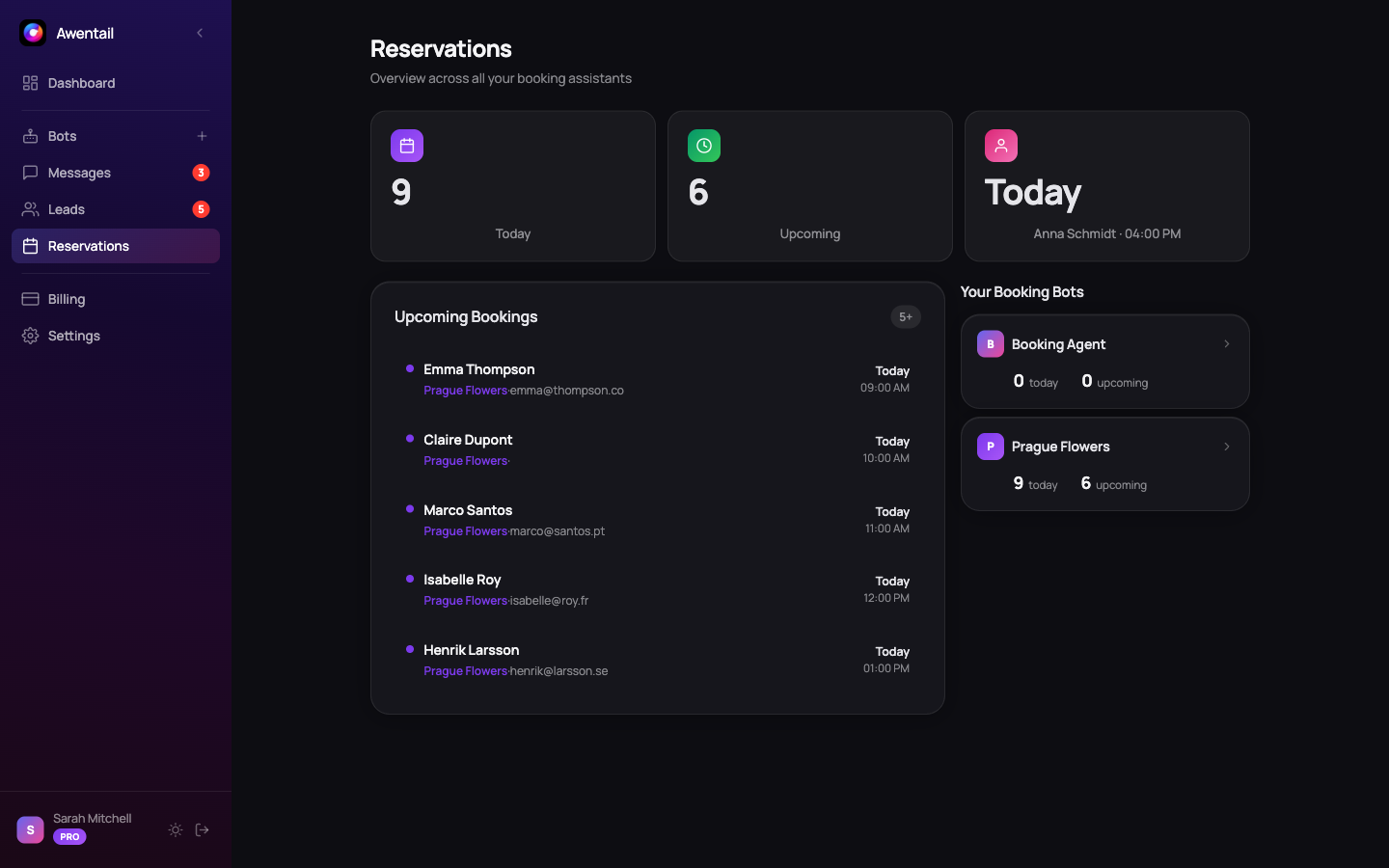
The Reservations view shows all upcoming bookings:
- Filter by date range, status (confirmed / cancelled / no-show), service, staff
- Click a booking to see notes, contact info, source (chat / voice / manual / public widget)
- Mark no-show if a client doesn’t arrive — it’s tracked for analytics
Manual bookings
Need to enter a booking from a phone call or walk-in? Click + New booking in the Reservations view. Fill in client info, pick a slot, save — same email confirmations are sent.
Confirmation emails
Both you and the client receive:
- Confirmation email with date, time, service, location, and a one-click cancellation link
- Cancellation link is a signed token — no login required for the client
- Optional reminder email 24 hours before the appointment
Reply-to is set to your business email so the client can ask follow-up questions.
Public booking widget
Want a standalone booking form on your website (no chat)? Embed the reservation widget — an inline form where visitors pick a service, time, and provider, then enter their details. Bookings land in your inbox exactly like chat or voice bookings.
Copy the snippet from Bot → Publish → Embed Booking Widget, or build it yourself. Place it where you want the form to appear:
<script
  src="https://app.awentail.com/booking-embed.js"
  data-awentail-booking="your-bot-id"
  data-api-url="https://app.awentail.com/api"
></script>
The widget is embedded inline (not a floating bubble) and resizes itself automatically as the visitor moves through the steps.
Options
| Attribute | Default | Description |
|---|---|---|
data-awentail-booking | (required) | Your appointment bot’s ID |
data-api-url | script origin + /api | API base URL |
data-theme | bot setting | light, dark, or auto |
data-lang | bot / browser | en or cs |
data-currency | CZK | ISO currency code for prices |
data-max-width | 480 | Max form width in pixels |
The bot must have purpose = Appointment and reservations enabled, otherwise the widget shows an “unavailable” message.
Prefer a raw iframe (no auto-resize)? Point it at https://app.awentail.com/booking.html?bot=your-bot-id.
What’s next
- Voice AI — let the phone AI book during a call
- Lead management — bookings auto-create leads with contact info
- Analytics — see booking volume per service / staff