Voice AI
Awentail’s voice assistant answers a real phone number with a natural human voice. It can introduce your business, answer questions from your knowledge base, capture caller contact info, and book appointments - all without your team picking up.
It runs on advanced conversational voice AI for the voice and our telephony infrastructure for the phone line.
When to use Voice AI
- Inbound calls outside business hours
- High-volume reception lines where most calls are FAQs
- Appointment-driven businesses (clinics, salons, repair, consulting)
- Lead-capture lines for marketing campaigns
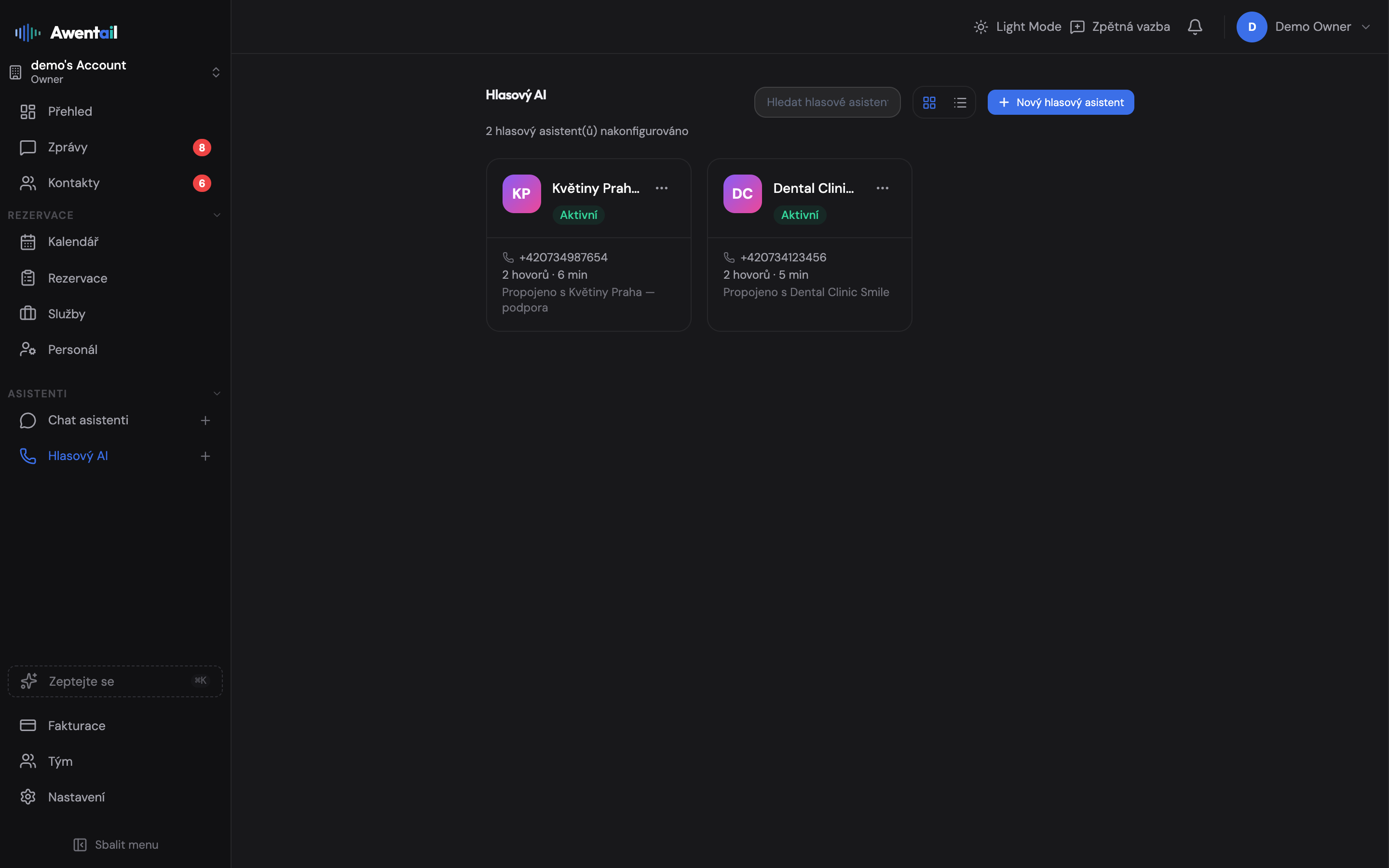
Create a voicebot
- Go to Voicebots in the sidebar → New voicebot
- Name - internal label, plus the business name the AI will use on calls
- Language - Czech, Slovak, English, or German (controls the voice accent and the language the AI speaks)
- Voice - pick from the voice library; preview each before saving
- System prompt - describe your business and how the AI should behave. Example:
You are the assistant for Acme Dental Clinic in Prague.
Greet callers politely. Answer questions about services and pricing.
For appointments, use the check_availability and create_booking tools.
If asked about something not in your knowledge, offer to take a callback.- Greeting - first sentence the AI says when the call connects
- Max call duration - safety cap (default 180s, max varies by plan)
Connect a phone number
In the voicebot detail page, click Provision number. Awentail provisions a phone number in the country you select and routes incoming calls to your AI. Provisioning takes seconds; SMS/voicemail aren’t enabled by default.
You can also bring your own phone number - contact support if you need this.
Link a knowledge base
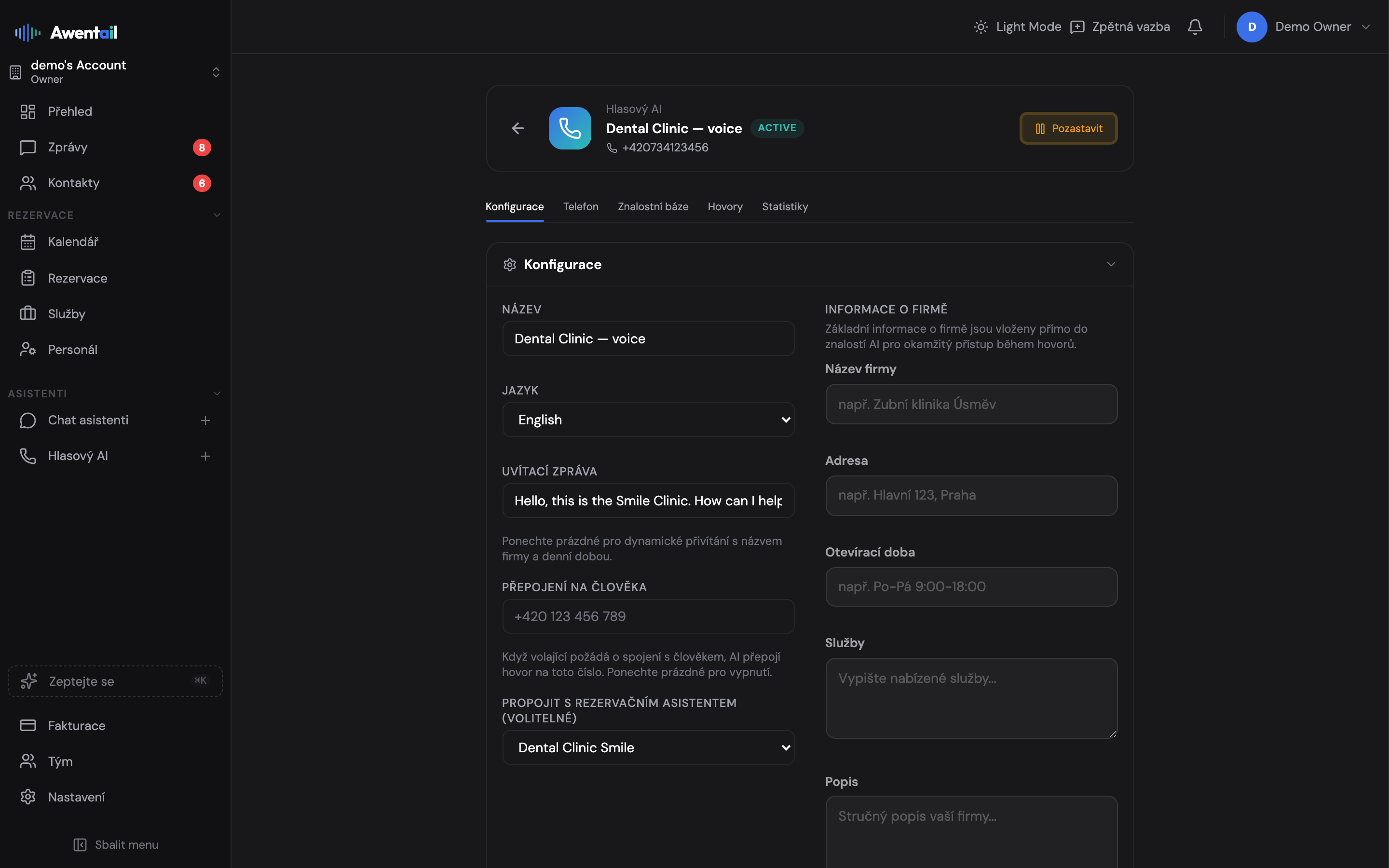
Voicebots can share knowledge with a chatbot you’ve already set up. On the detail page, set Linked chatbot to the bot whose documents the voice AI should use. The voicebot now answers from those documents instead of needing its own uploads.
If you don’t link a chatbot, upload PDFs/DOCX/TXT directly on the voicebot’s Knowledge tab.
Tools the AI can use
Enable any combination on the Tools tab:
- check_availability - looks up open slots in your reservation calendar
- create_booking - books a confirmed appointment
- cancel_booking - cancels by email or phone verification
- save_lead - stores caller name, email, phone, and topic as a new lead
- get_business_info - answers from a structured business-info form (hours, address, services)
- transfer_to_human - forwards the call to a real phone number
Booking tools require an active reservation schedule on the linked chatbot - see Appointment booking.
Call logs and transcripts
Every completed call appears under Call log with:
- Duration, caller ID, recording (if enabled)
- Full transcript (turn-by-turn)
- AI-generated summary of the call
- Any tool calls (lead saved, booking made, transfer placed)
Use this to QA the AI’s responses and improve the system prompt.
Minutes, daily caps, and overage
Each plan includes monthly call minutes. When you approach the limit:
- A banner appears on the Voicebots view
- Overage is billed at €0.25/min (€0.20 on Enterprise) up to a monthly cap of €25 (€100 on Enterprise) - your bill never silently runs away
- A daily cap stops the line if 40 % of the monthly allowance is consumed in a single day (runaway protection - a legitimate caller should rarely hit it)
See Billing & plans for plan-by-plan numbers.
What’s next
- Set up appointment booking so the AI can book on the call
- Lead management - where captured contacts land
- Billing & plans - voice plan limits and pricing